Overview
This guide walks through submitting written testimony to the Hawaiʻi State Legislature via capital.hawaii.gov. CivicNexus helps you draft and format your testimony; this document covers the final step—uploading it to the state’s portal.
We’ll go over:
- Logging in (or registering) on the Capitol website
- Opening the testimony form with your bill pre-filled
- Filling in your position and testimony text
- Submitting via pasted text or an uploaded document
Before you start: draft your testimony in CivicNexus
If you haven’t already, open the bill in CivicNexus and use the Testimony workspace to draft your statement. You can either:
- Copy the plain text from the testimony screen to paste into the Capitol website, or
- Export a document from the testimony screen and upload that file instead
Both options work—the state portal accepts either format.
Step 1: Log in to the Capitol website
When you submit testimony from CivicNexus, you’ll be directed to the Hawaiʻi State Capitol website. You’ll be asked to log in with a username and password.
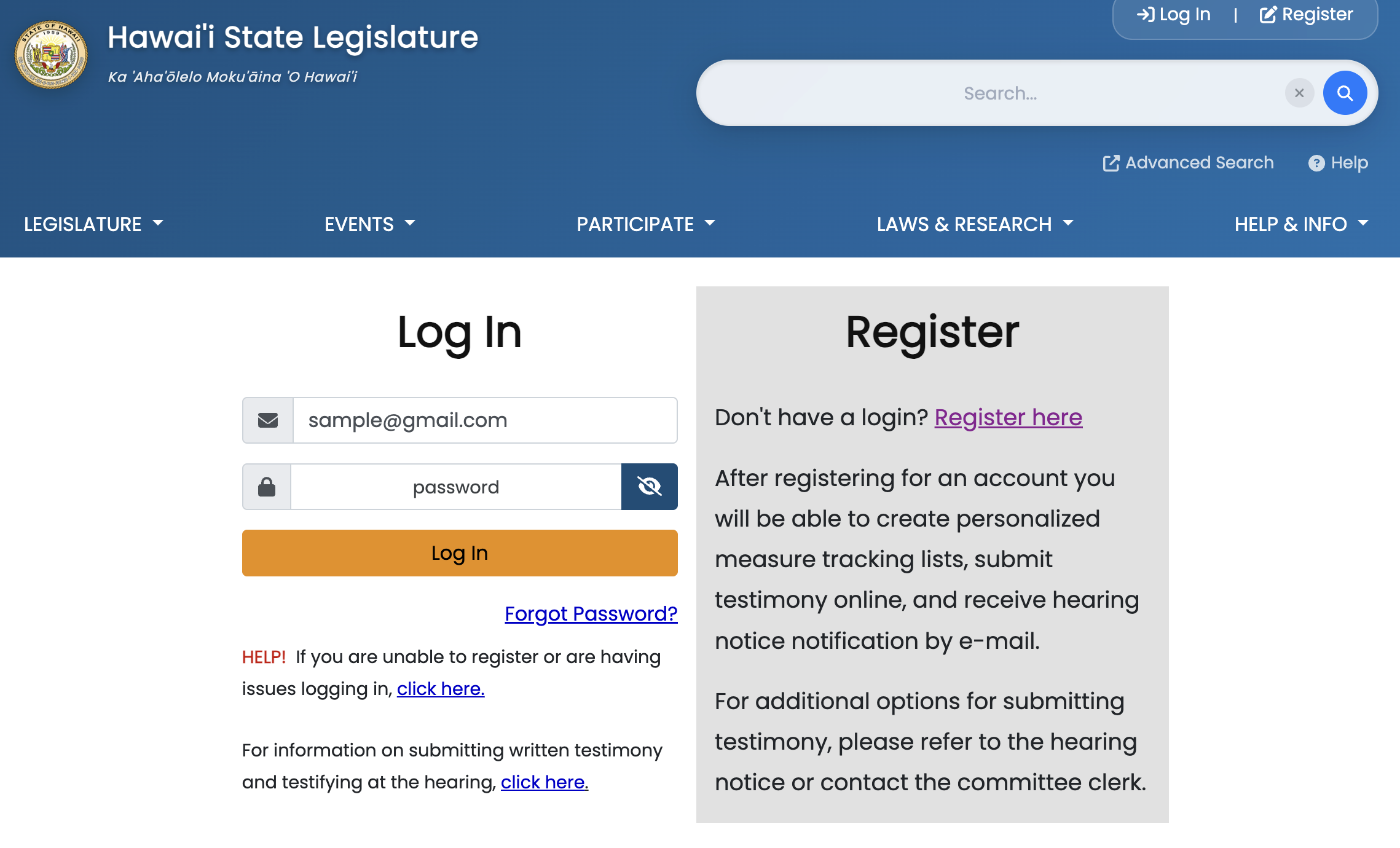
Don’t have an account?
If you don’t already have a Capitol website account, click Register to create one. You’ll need to provide basic contact information. Once registered, return to the login page and sign in.
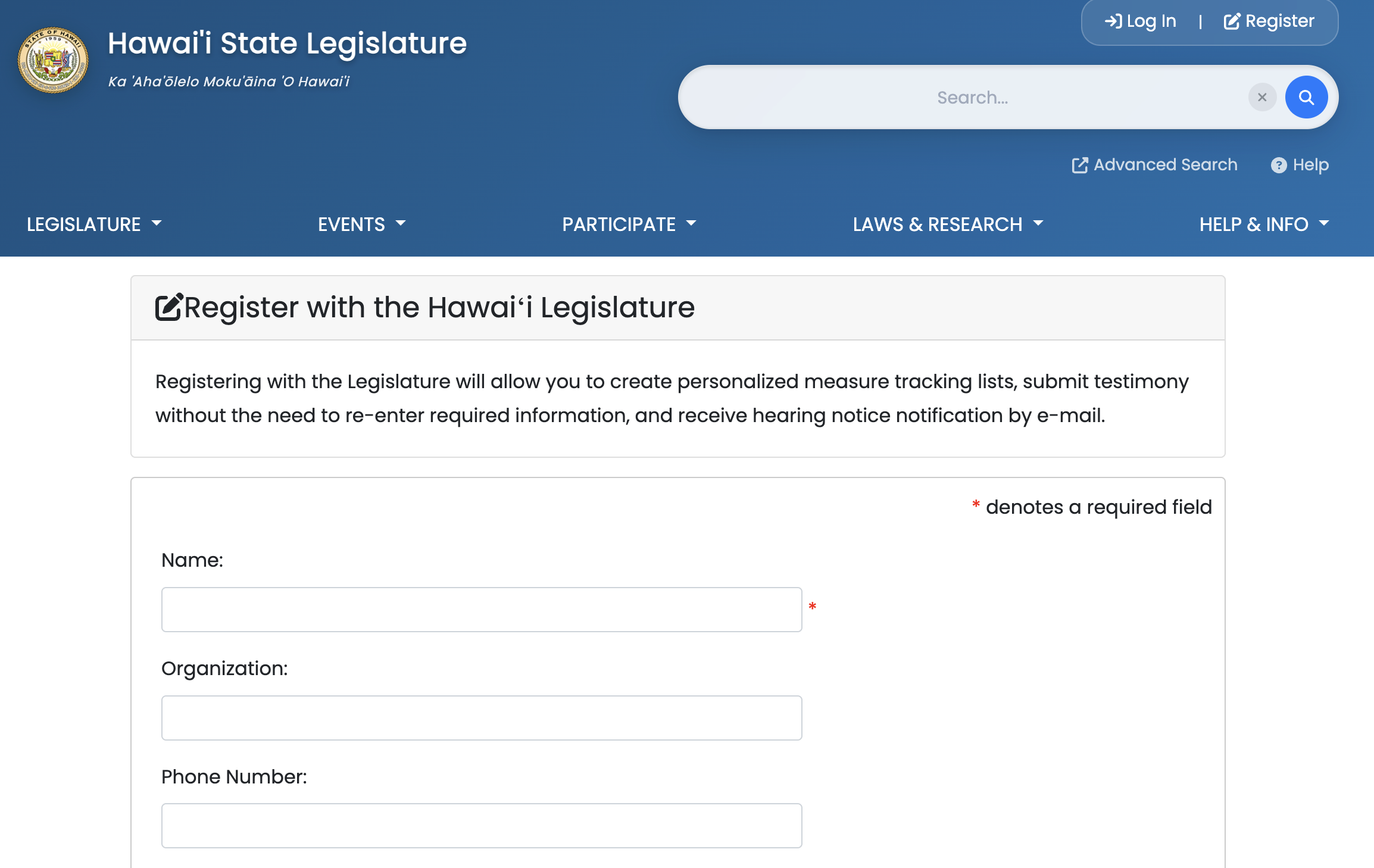
Tip: Save your Capitol website credentials somewhere secure—you’ll use them each time you submit testimony.
Step 2: Confirm the bill is pre-filled
After you log in, you’ll land on the testimony submission page. CivicNexus automatically fills in the bill ID for the bill you’re submitting testimony on, so you don’t need to search for it manually.
Verify that the bill number and hearing information look correct before continuing.
Step 3: Fill in your position and testimony
On the submission form, you’ll be asked to complete a few fields:
- Position: Whether you support, oppose, or are commenting on the bill
- Testimony text: The body of your written statement
You have two ways to provide your testimony text:
Option A: Paste plain text
Copy the testimony text from your CivicNexus testimony screen and paste it into the text field on the Capitol website.
- In CivicNexus, open the bill’s Testimony workspace.
- Select and copy the testimony text.
- Paste it into the testimony text field on the Capitol website.
Option B: Upload a document
If you prefer to submit a formatted document, export it from CivicNexus and upload the file instead.
- In CivicNexus, open the bill’s Testimony workspace.
- Use the Export option to download your testimony as a document (e.g.,
.docxor.pdf). - On the Capitol website, choose the upload document option and select the file you downloaded.
Tip: If you’re unsure which format to use, plain text is the fastest option. Upload a document if you want to preserve formatting or include a letterhead.
Step 4: Submit your testimony
Review your position and testimony text one more time, then click Submit on the Capitol website.
You should see a confirmation that your testimony was received. Keep a copy of your submission for your records.
Need help with testimony drafting?
If you want help setting up testimony templates, drafting faster with AI, or coordinating submissions across your team, request a walkthrough.